

A full website quality audit used to take us hours to set up and about 20 hours to analyze.
Then it went into a stack of spreadsheets that sat in somebody's inbox and never got executed.
Now it takes about 30 minutes, and it ends in a project plan with owners and due dates.
I'm going to walk you through the exact audit I ran on our own site, The Blueprint Training, inside Agency OS. Every step, every decision.
Here's the short version:
- A website quality audit combines a technical audit, a content audit and a content roadmap in one pass.
- You feed it Screaming Frog, Search Console, GA4 and Ahrefs data. It classifies every page and makes a recommendation for each one.
- You approve, edit or reject every recommendation. The AI audits, the human decides.
- Approved technical fixes become tasks in the client's project plan. Approved content becomes the client's content calendar.
What Is a Website Quality Audit?
A website quality audit is a page-by-page review of a website that decides what to fix, what to update, what to create and what to leave alone. It combines a technical audit, a content audit and a content roadmap.
Most audits stop at a list of problems. This one ends with a decision on every page.
That's the difference. A list of problems doesn't get executed. A project plan does.
If you want to see where it fits in a full campaign, here's our list of SEO deliverables for client campaigns.
Scan Through the Website Quality Audit Deck
This is the deck we use to teach the audit. Click through it to see the whole process before you run it.
What You Need Before You Run the Audit
| Input | Where it comes from |
|---|---|
| Search Console | Connected in the client's settings |
| GA4 | Connected in the client's settings |
| Windsor | Connected in the client's settings |
| Ahrefs | Your API key |
| Anthropic key | Your API key |
| Screaming Frog crawl | Uploaded for each audit: the full crawl plus the All Inlinks export |
Every site you audit in Agency OS is a client. So most of the data is already connected.
The client should already have Search Console, GA4, Windsor, Ahrefs and your Anthropic key set up. If they don't, go to that client's settings and connect them.
The one thing you add for each audit is the Screaming Frog crawl.
Step 1: Upload the Crawl and Run the Audit
Export 1: the full crawl
- ✓Crawl the entire website
- ✓Click Export
- ✓Save the file
Export 2: internal links
- ✓Bulk Export
- ✓Links, then All Inlinks
- ✓Save the file
Go to Tools, then Website Quality Audit, and start a new audit.
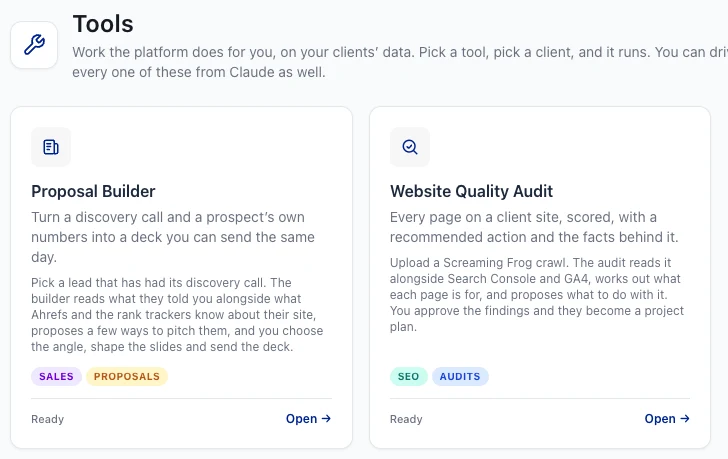
You need two exports from Screaming Frog. The full crawl of the site, and the internal links file (Bulk Export, then Links, then All Inlinks).
Upload both. They turn green when they're ready. Then click Run audit.
What Happens While It Runs
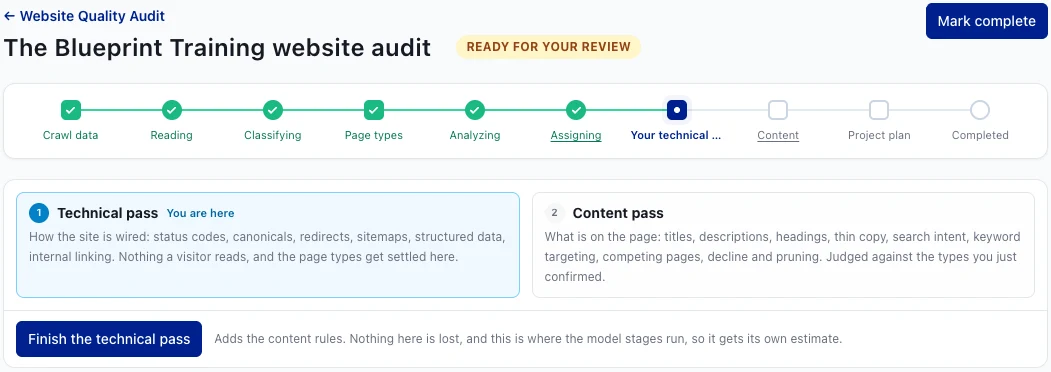
It takes a few minutes. The tool is ingesting huge CSV files plus Search Console, GA4 and Ahrefs data.
You'll see the progress at the top. Circles are automatic steps. Squares are decisions for you.
The first thing it does is read the site and classify every page.
Check the Rules Before You Start
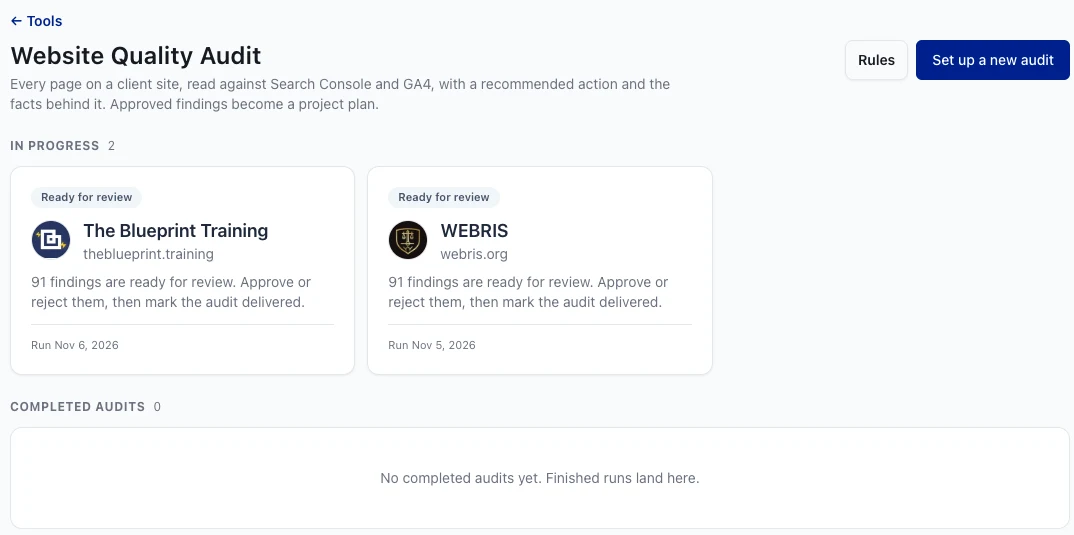
Before you run anything, look at the rules. That's all the logic the audit uses.
You can set your own thresholds and change the page classifications. If you have questions about any of it, ask Claude. It'll explain it better than I can.
Step 2: Review the Page Types
After a minute or two, the page types are done. You'll get a notification that they're ready for review.
This step matters more than it looks. When you analyze, track and report, you don't want to compare apples to oranges.
You want to look at only blog posts and judge their performance. Then only service pages. You can't make good decisions if the two are mixed together.
Fix the Unclassified Pages
| Page | What I changed it to | Why |
|---|---|---|
| Bootcamps | Product page | It's something we sell |
| Affiliate program | Site info | A core page, not a marketing page |
| Reviews pages | Site info | Not a marketing page |
The number next to Page Types is how many pages need your approval.
You can accept based on confidence or accept everything it proposed. Don't just blanket-approve. Getting a handle on what's what is an important part of the SEO process.
Site info is for core pages that aren't really marketing pages: about pages, login pages and so on.
Check the Pages That Matter Most
Check these closely
- ✓Service pages, the most important pages on the site
- ✓Blog posts
- ✓Product and program pages
Don't sweat these
- ✕Help pages
- ✕Login and account pages
- ✕Legal pages
The unclassified pages aren't the only ones to check. Go to the full audit view and filter by type.
Look at service pages first. Make sure the audit caught every service page, because those are probably the most important pages on the website. Then check blog posts.
The more you run the audit, the more it learns. It gets better at classifying pages, and then at analyzing them.
When you're happy, click These look right. That tells the audit to move on to the technical pass.
Step 3: Run the Technical Pass
Can search engines find the page through internal links and site depth?
Can they reach it without redirects, dead ends or errors?
Can they index it, and is the canonical pointing the right way?
The technical audit focuses on discoverability, crawlability and indexation. Can search engines find, crawl, index and understand each page?
Those are the most important technical problems. Everything else is secondary.
Read the Summary First
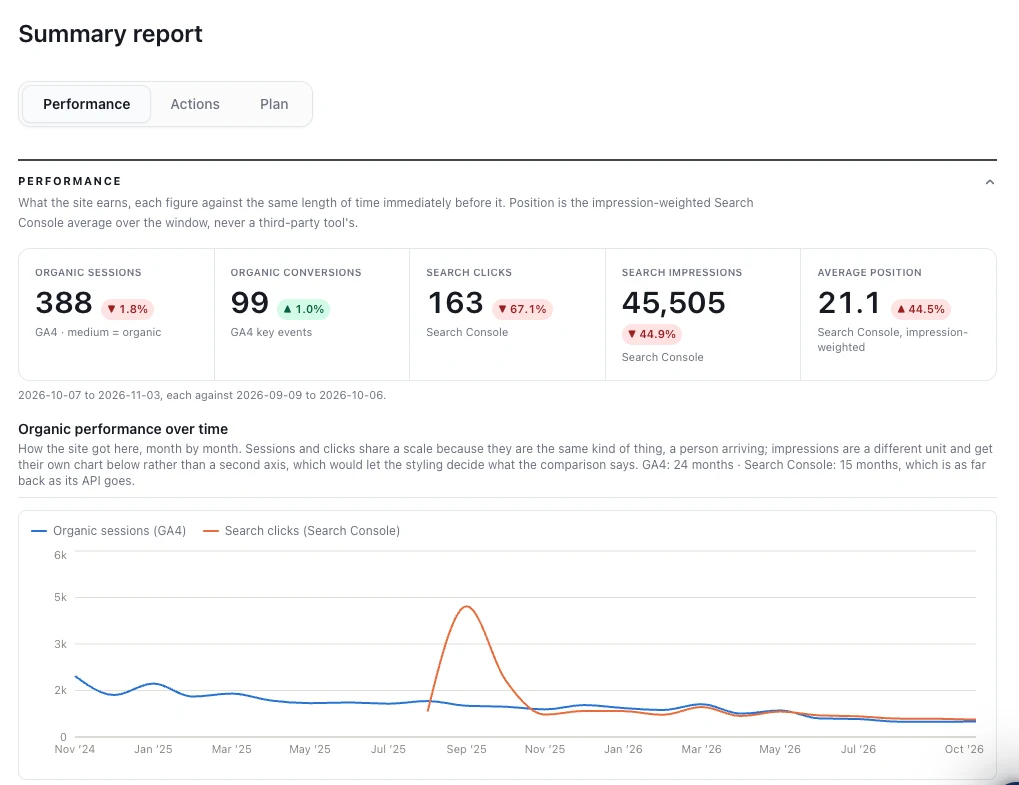
The audit has two sub-tabs. The Summary is where the final data lands.
I'm not going to pretend it's the world's best report. It's there to give you context on a new website.
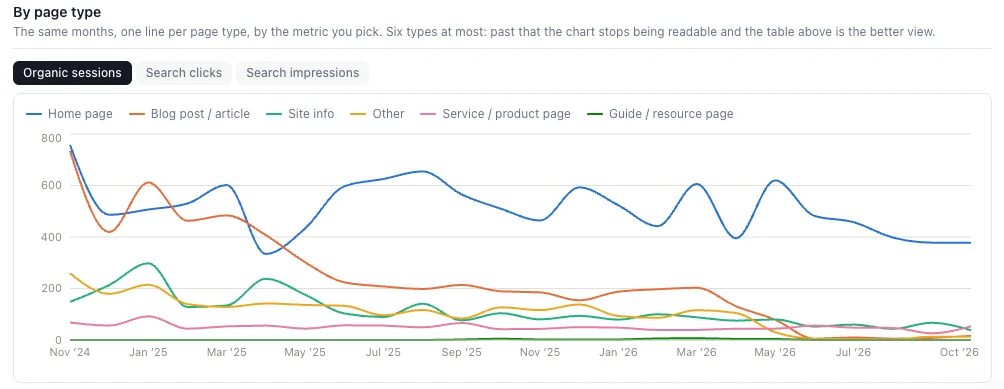
On our site it showed something we needed to see. The home page is carrying the whole website. Our blog posts have dropped close to zero over time.
Filter the Page-Level Recommendations
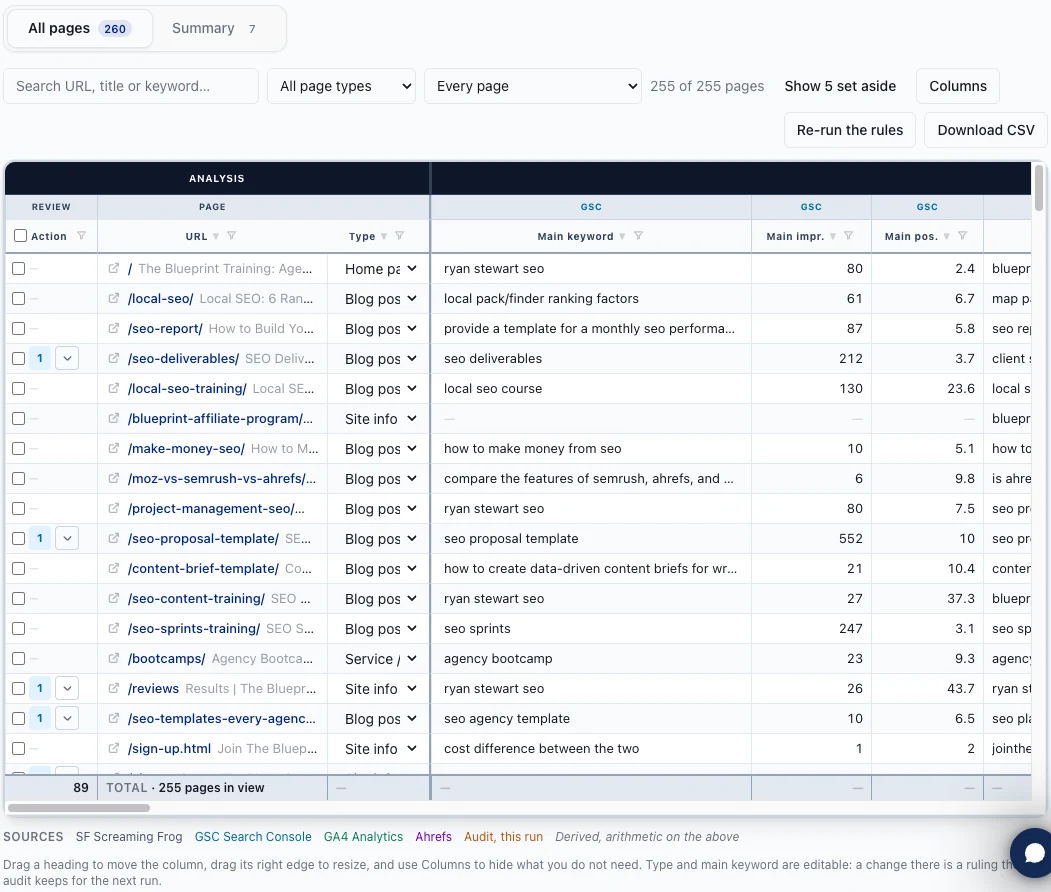
Switch to the audit view. The small numbers next to each page are technical recommendations. Some pages have four or five.
It's basically a spreadsheet. For every page you get keywords, impressions, rankings, intent, Ahrefs volume, click data, GA4 data, traffic trend, title and meta description.
Literally every piece of data you could want is in there. Click any page to open all of it.
Example: A Canonical Pointing the Wrong Way
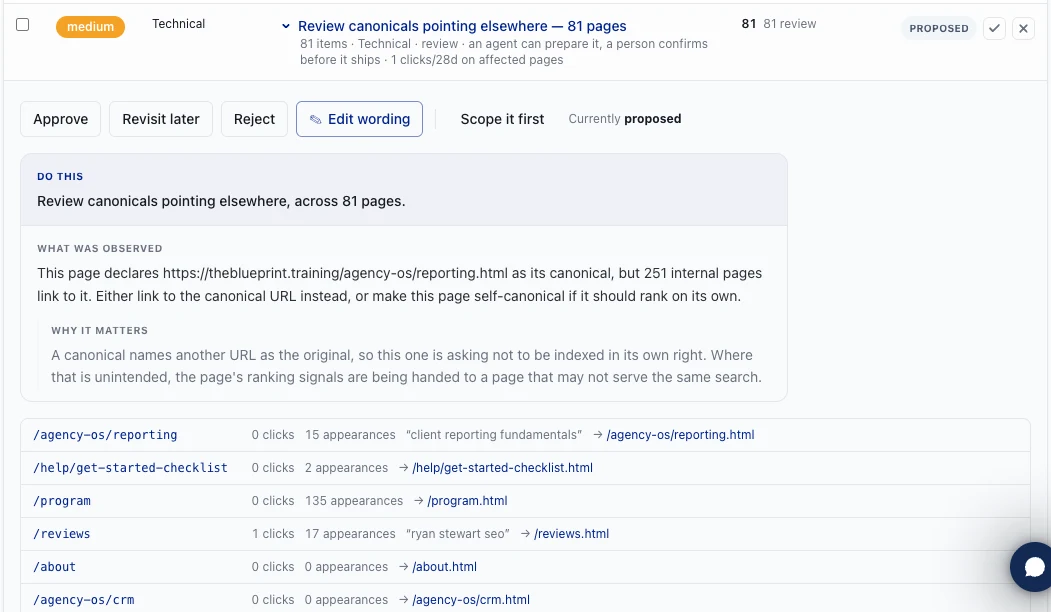
Here's a real one from our site. Our reviews page is an important page, and its canonical pointed to the .html version of the URL.
But all of our internal links point to the clean version. Google's documentation says linking consistently to your canonical URL "helps Google understand your preference." Ours were sending mixed signals.
The audit's recommendation said exactly that: change the canonical.
Edit the Wording, Then Approve or Reject
Whatever you approve gets added to the project plan to be fixed. So I usually rewrite the recommendation in my own words first, like "change canonical."
Then approve it, reject it or remove it.
Use your judgment. The audit flagged a 404 on an old freebie page I took down on purpose. I rejected it. Not worth the effort.
For two URLs redirecting to a dead page, I edited the wording to "set up a redirect from these two pages" and approved it.
Bulk Approve From the Summary View
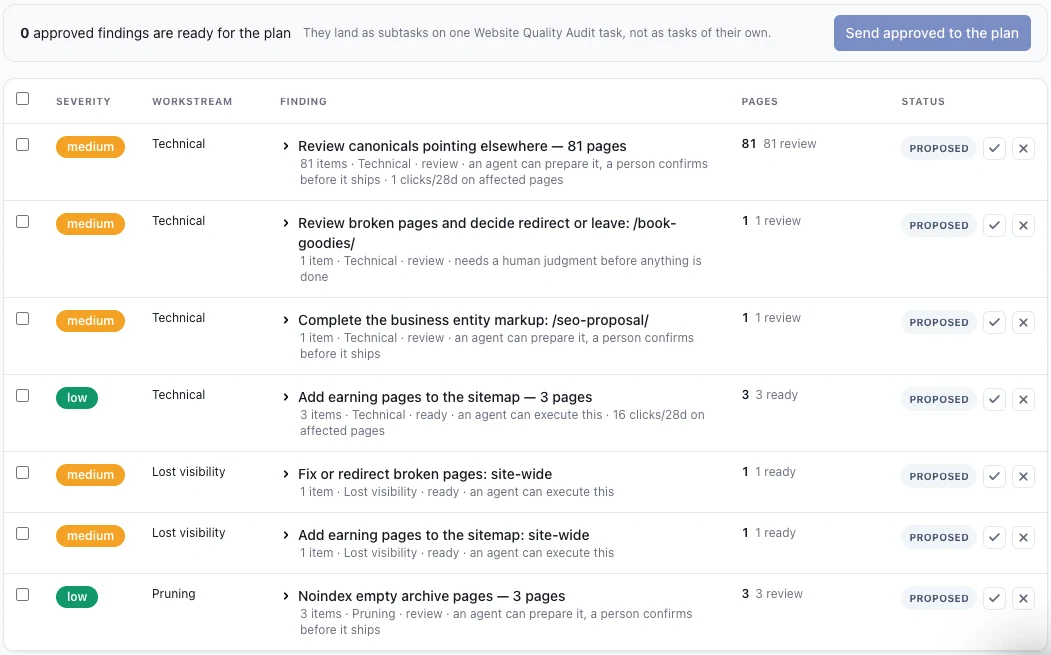
You don't have to go page by page. The Summary view groups the findings.
On our own site, it grouped 81 pages with canonicals pointing elsewhere into a single finding. It pulls examples so you can check them, then lets you approve them one by one or all at once.
You can see the 404 I rejected in there too: the /book-goodies/ page.
Ask Claude to Explain Anything
A normal audit tool
- ✕A list of errors
- ✕Technical jargon
- ✕You figure out what matters
Agency OS + Claude
- ✓"Break finding two down for me"
- ✓"Show me the page and why it happened"
- ✓"Approve this, reject that"
I know what you're thinking. "Ryan, I'm not the most technical SEO. I need help with this."
Because the audit is connected to Claude, you just ask. Tell it you want to look at the technical actions for a client, and it brings them up with context.
It's like having your own technical SEO consultant who's connected to the data and the client. No big prompt. Just a conversation.
Ask it why a page has an .html version. Ask how important a finding really is. You can even approve and reject through Claude and it updates Agency OS for you.
Send the Fixes to the Approved Plan
The old way
- ✕A spreadsheet in someone's email
- ✕No owner
- ✕Never executed
The audit's way
- ✓A task with subtasks
- ✓Owners and due dates
- ✓Accountability
Once you've made a decision on every finding, click Send to approved plan.
That builds a Website Quality Audit task in the client's project plan, with every approved fix as a subtask. You can also see the actions you didn't approve.
Then click the button to move on to the content pass.
Step 4: Audit Your Existing Content
The content pass takes a few minutes to load. When it's done, you'll see two new tabs: Existing content and New content.
Start with existing content. Updating what's already on the site is the fastest way to turn on organic traffic, especially as we move into the age of GEO.
A lot of clients have content that's old, needs updating, needs a full rewrite or should just be left alone.
Set the Target Keyword for Each Page
| Field | Where it comes from |
|---|---|
| Title, meta, H1, word count | Screaming Frog |
| Published date | The crawl |
| Current best keyword | Search Console |
| Volume and position | Ahrefs, refreshed when you change the keyword |
| Head-start analysis | The audit: cannibalization, thin content, traffic loss |
Click any page to open the sidebar. It starts with the page's best-performing keyword from Search Console.
Change the keyword and save it, and it pings Ahrefs for volume and current position. You can change it as many times as you want.
If the page doesn't rank for much yet, the suggestions won't be great. That's where you do a little manual keyword research. Here's our keyword research guide.
Leave Notes for the Content Team
Ranking for "client reporting fundamentals" and "SEO reporting training."
"Agency client reporting software," with a note to rewrite the body, the title and the description.
Here's a real example. Our Agency OS client reporting page was picking up keywords like "client reporting fundamentals."
That's not what it's for. We want it ranking for agency client reporting software.
So I changed the keyword and voice prompted a note: the page isn't picking up the keywords we want, retarget it, rewrite it, re-evaluate it. Then I added it to the roadmap.
Those notes go straight to the content team. They pick it up and know exactly what to do.
Bulk Ignore the Pages That Don't Matter
Including dozens of Agency OS help pages.
49 ignored. What's left: service, product and program pages, blog posts and podcasts.
Our site has a ton of help pages for Agency OS users. They're not marketing pages.
So I filtered by page type, selected all the help pages and bulk ignored them. Then I went through what was left one by one.
Yes, you can bulk evaluate. But this is where we cut our teeth as SEOs. With all the AI and automation, this is where your human time should go.
Step 5: Find New Content With a Content Gap Analysis
That covers the content on the website. What about the content that isn't there?
The new content tab is a content gap analysis and keyword research tool in one. It figures out what you're missing and what competitors get traffic for.
For a law firm, that means checking every practice area page and every location page. For HVAC, every service and sub-service.
Use Google's AI Mode to Find Competitors and Services
For competitors
- ✓"Give me ten competitors of [client]. Just the domains, comma separated."
- ✓Remove the client's own site
- ✓Remove giants like Semrush
For services
- ✓"Give me all the practice areas for a law firm, comma separated."
- ✓Paste them in as services
- ✓Multiply by the client's markets
I fill in the inputs with Google's AI Mode. Ask it for ten competitors and their domains, comma separated.
Don't take all of them. Remove the client's own site, and remove the giants that aren't real competitors.
For a law firm client, I ask for every practice area. They should have a page for every one of them, in every market they serve. More on choosing competitors in our SEO competitive analysis guide.
Find the Gaps, Then Cherry-Pick Keywords
Seed keywords pulled from what competitors rank for.
With a page type, an intent and a brief, then push to the roadmap.
Click Find the gaps. It checks the services and competitors against the site to find what's missing.
Then go through the competitor keywords. We had about 200, and a lot of them were junk: "how to delete Instagram," that kind of thing. Ignore those fast.
When one's good, open it. You'll see who ranks for it and where the competitor ranks. Set the page type and intent, and leave a note.
For "best AI visibility tools," I set it as an awareness blog post and voice prompted a brief: a long-form listicle where every tool gets its own H2, a screenshot, a write-up and pricing.
That gives the person, or the AI, who writes it everything they need. Here's how we build those in our content brief template.
Build the Keyword Universe
Back in the day
- ✕A human writer
- ✕A small, limited scope of content
Now
- ✓AI writes the drafts
- ✓A much bigger content plan
Click Build the keyword universe for a much bigger set of keyword ideas.
We used to limit the content plan because a human writer had to write all of it. Now AI writes it, so you can expand the plan a lot.
We're building the roadmap here, not writing the content. That comes later.
Step 6: Push It All Into the Project Plan
In the client's project plan, with subtasks, owners and due dates.
In the client's content workbook, with every note you left.
Click Review the plan. You'll see every action, new and existing content, and the full content roadmap. Ours had 292 items.
The technical fixes are already in the project plan. Open any task and everything the person, or the AI, needs to do the work is right there.
Assign owners. Add due dates. You can put more than one owner on a task.
Push the Content Roadmap to the Content Workbook
Go back to the Summary tab, open the content roadmap and click Push to the content workbook.
That's the client's content calendar. Every topic is listed, with all the notes you left, ready to assign.
From there we hand it to AI agents, managed by a person. They write the outlines, do the research, write the content, find the images and publish.
Then mark the audit complete. You now have a technical audit with fixes assigned to people, and a content calendar for every page the site needs. Here's more on running it as a project in SEO agency project management.
Website Quality Audit vs. an Ahrefs Site Audit
| Ahrefs Site Audit | Website Quality Audit | |
|---|---|---|
| Data | Ahrefs only | Screaming Frog, GA4, Search Console and Ahrefs |
| AI | No | Connected to Claude or ChatGPT |
| Output | A list of issues | A project plan and a content calendar |
You might be wondering how this is different from an Ahrefs site audit.
An Ahrefs audit only uses Ahrefs data. We use Screaming Frog, GA4, Search Console and Ahrefs together.
And we're connected to an AI brain through Claude, or ChatGPT through the MCP. You can ask it anything about the audit.
This audit used to take two weeks. You just watched me run one in about 30 minutes. It's live in Agency OS right now.
Run This Audit for Your Clients
The Website Quality Audit is built into Agency OS, included with The Blueprint Training. You get the audit, the project plans, the content workbook and the training on how we run SEO for our own clients.
Join The Blueprint Training →